Overview
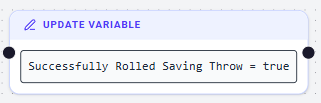
Update Variable Nodes are a fundamental part of the Flow logic, allowing you to modify the state of your application during execution. They are used to update variables, change asset properties, or manipulate collections of data. By using Update Variable Nodes, you can track player progress, manage inventory, calculate stats, and control dynamic game states.
Configuration Steps
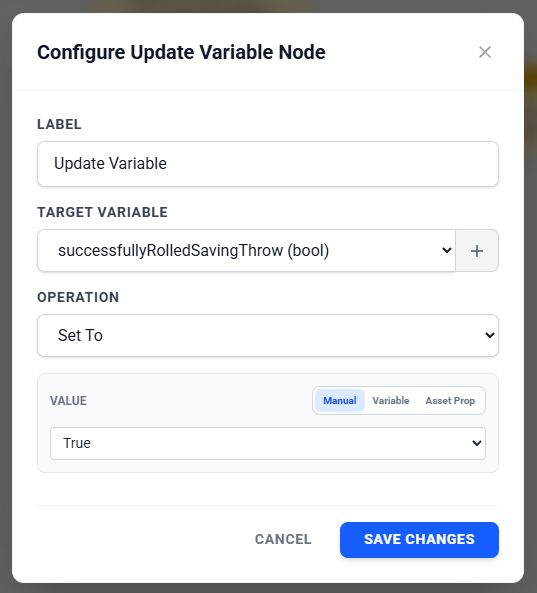
1. Select the Target
The first step is to choose what you want to update. You can target:
- Project Variables: Global or Local variables defined in your project (e.g.,
CurrentScore,IsGameOver,PlayerInventory). (Note: To update properties directly on an Asset, use the Update Asset node instead.)
2. Choose an Operation
The operation determines how the target value will change. The available operations depend on the Data Type of the target:
For Numbers (Integer, Float)
- Set To (=): Overwrites the current value with a new one.
- Add (+): Adds a value to the target.
- Subtract (-): Subtracts a value from the target.
- Multiply (*): Multiplies the target by a value.
- Divide (/): Divides the target by a value.
For Text (String), Booleans (True/False), and Single Assets
- Set To (=): Overwrites the current value.
For Collections (Lists of Assets)
- Add Element: Adds a new item to the collection.
- Remove Element: Removes a specific item from the collection.
- Clear: Removes all items, resulting in an empty list.
- Sort: Reorders the collection based on a specific property of the items (e.g., "Sort variable
Inventoryby propertyValueinDescendingorder").
3. Define the Value
Once you've chosen an operation, you need to provide the value to use. You can source this value from:
- Manual Input: Type in a static number, text, or select a specific asset from a dropdown.
- Variable: Use the current value of another variable.
- Asset Property: Dynamically pull a value from a property on an asset (e.g., "Set
Player.GoldtoTreasureChest.GoldAmount").
Common Use Cases
Logic & State Management
- Tracking Health: Use
Subtractto decreasePlayer.Healthwhen they take damage. - Toggling Switches: Use
Set Toto changeDoor.IsOpentoTrue. - Game Loops: Use
Addto increment aTurnCounterby 1 at the end of every turn.
Inventory System
- Looting: Use
Add Elementto add a found Item to thePlayerInventorycollection. - Consuming Items: Use
Remove Elementto take a Potion out ofPlayerInventorywhen used.
Was this article helpful?
That’s Great!
Thank you for your feedback
Sorry! We couldn't be helpful
Thank you for your feedback
Feedback sent
We appreciate your effort and will try to fix the article